Navigate data
Navigate the document hierarchy, related results, and backlinks
Document tree
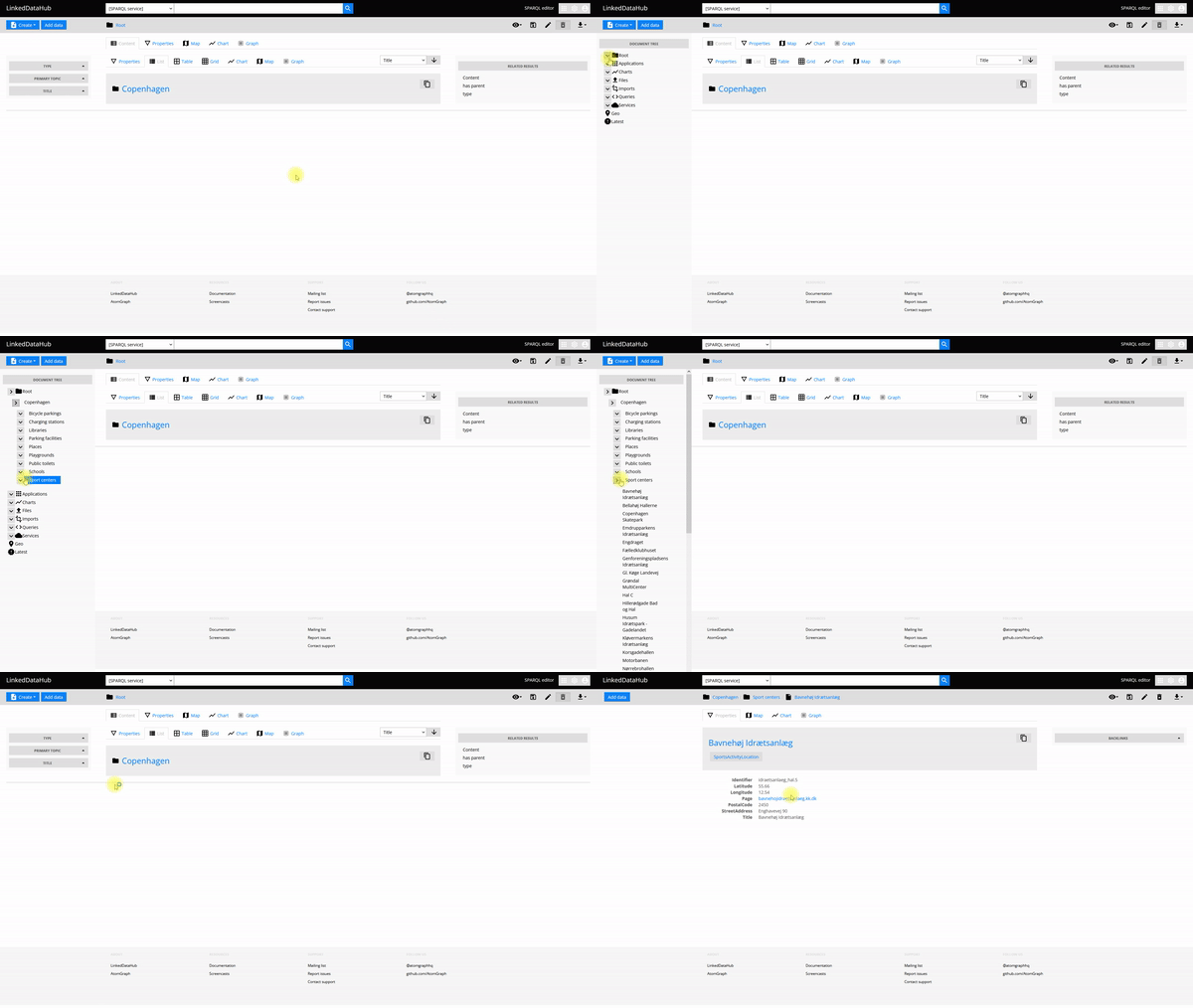
Document tree is a widget that enables quick overview of the application's document hierarchy. Each document is shown as a node in the tree; container documents can be expanded to reveal the children documents.
The widget can be accessed by sliding the mouse to the left edge of the screen (on responsive layouts, it is always visible).
Class-based navigation
In addition to navigating by document hierarchy, LinkedDataHub lets you navigate by
class. The Classes list in the left sidebar shows the classes (rdf:type values) that occur in your data, each labelled with the number of its instances and
ordered with the most-used classes first.
Using class-based navigation
- Open the left sidebar (slide the mouse to the left edge on desktop, or it is always visible on responsive layouts)
- Find the Classes list
- Click on any class to open a dialog listing all instances of that class in your dataspace
When to use class navigation
Class-based navigation is most useful when:
- Finding all instances of a type: Quickly locate all resources of a particular class, regardless of where they're stored in the document hierarchy
- Exploring domain concepts: Browse your data organized by business concepts (e.g., all Customers, all Orders) rather than by container structure
- Cross-container queries: View instances that span multiple containers in a single unified view
The classes list is derived from the data itself, so it reflects whatever types are present — no ontology needs to be defined. It respects your access control settings — you'll only see classes and instances you're authorized to access.
Backlinks
Backlinks are shown in the right-side navigation for every resource in property layout mode. They display a list of resources which have properties with the current resource as the object.